How to Use Zoom in 4 Easy Steps!
New to Zoom? We’ve got you covered.
Good Dog is on a mission to educate the public, support dog breeders, and promote canine health so we can give our dogs the world they deserve.

Good Dog is on a mission to educate the public, support dog breeders, and promote canine health so we can give our dogs the world they deserve.
Good Dog is on a mission to educate the public, support dog breeders, and promote canine health so we can give our dogs the world they deserve.
Whether you’re coming to experience the expertise of Dr. Hutchison, DVM, or looking to learn a new thing or two from the Good Dog Legal Team, we’re thrilled to have you join us for a Good Dog webinar! If you’re new here (or just need a refresher), we’ve broken down the ins and outs of Zoom into four simple steps, so you can easily join us for our next webinar!
Step One: Registering for the Webinar
About a week prior to the event, you’ll receive an invitation from Good Dog via email announcing the upcoming webinar. This email will also include information about what special guests will be joining us, the topic we’ll be discussing, and the date and time of the webinar. Most importantly, this email includes the link you’ll use to register for the event. Clicking the blue “Register Now” button at the bottom of the email will bring you straight to the Zoom registration page. From there, all you need to do is enter your name and email address, and your registration for the webinar is set!
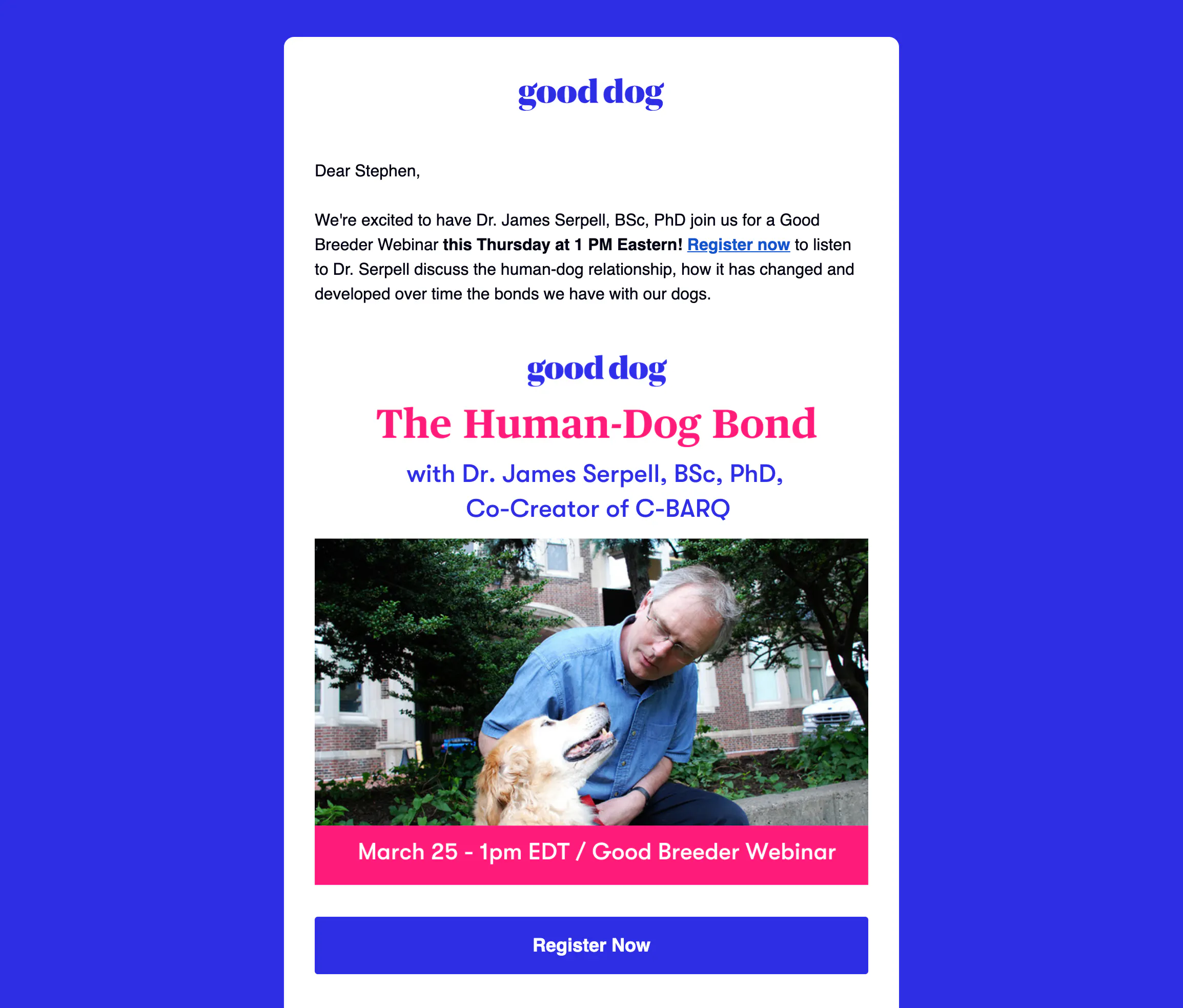
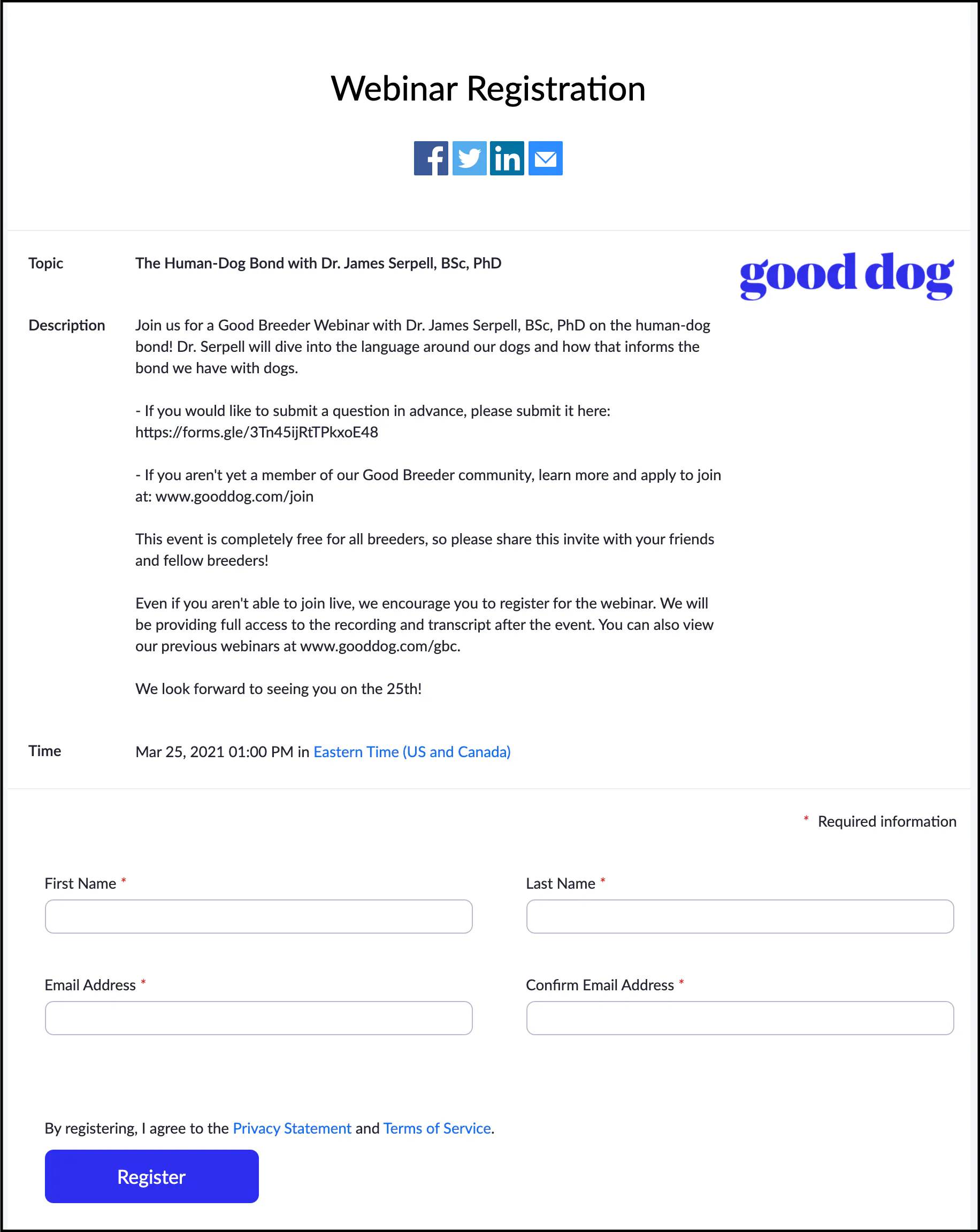
Helpful Tip #1: Lost track of your invitation email? Not to worry! You can always head to our Good Breeder Center or Facebook page, and check out our list of upcoming events. We create a Facebook event for every webinar, and we’ll always include the Zoom registration link there as well.
Helpful Tip #2: Hoping to invite your friends and colleagues? You can share with anyone by simply sending the Zoom registration link! That way, they can attend the event and will receive the event recording afterwards. The more the merrier!
Step Two: Receiving Your Confirmation Email
Just a few minutes after registering for the webinar, you should receive an email from Good Dog confirming your registration. This confirmation email will appear in the inbox of the same email address you used to register for the webinar, so it’s helpful to register with an email address you check regularly. This confirmation email contains important information about how to join the webinar when the time comes (more on that below!), so make sure to file it away in your inbox to a place where you won’t lose track of it. Don’t worry—you’ll also receive a reminder email the day before the webinar, containing all of the same important information on how to join.
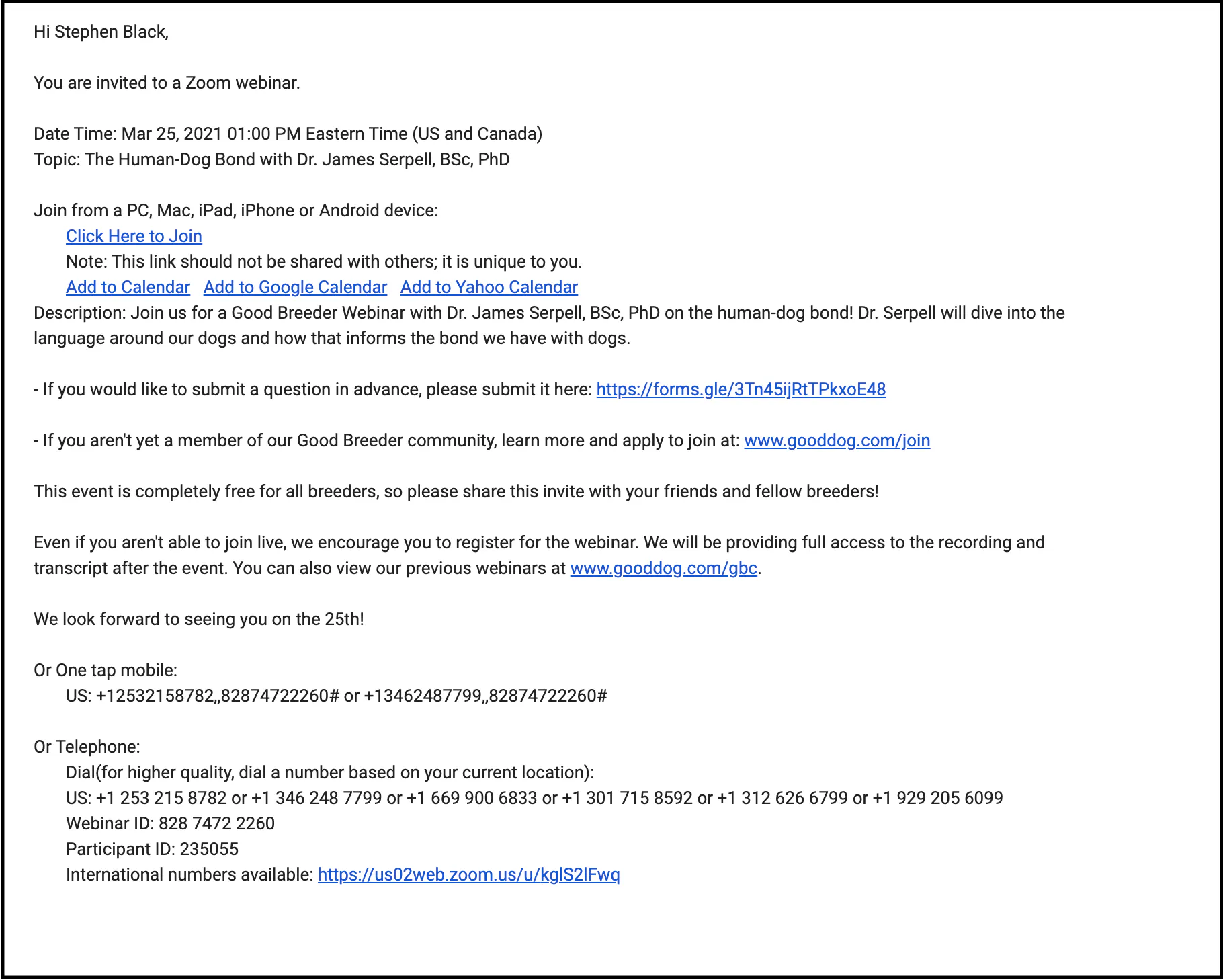
Step Three: Downloading the Zoom Application
If this is your first time attending a Zoom webinar, you’ll probably need to download the Zoom application to your computer or phone (whatever device you prefer to watch on!). You can easily install the safe and secure app (everyone at Good Dog uses it too!) on your preferred device here. We recommend making sure this app is installed a few days before the webinar, just so you know you’re all set.
Step Four: Joining the Webinar
It’s showtime! On the date and time the Zoom webinar is set to begin, you can open up your event confirmation email and join the event one of two ways:
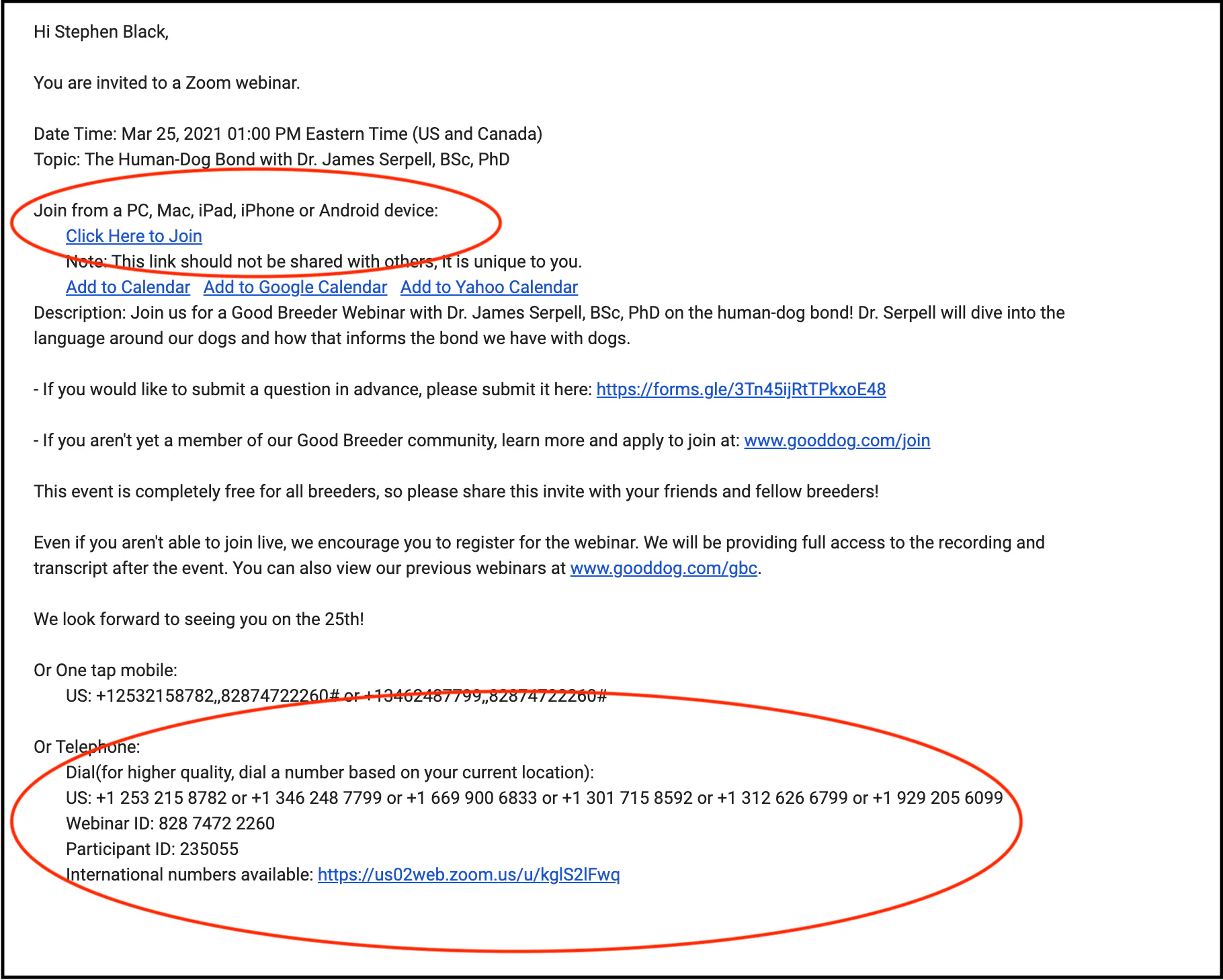
Join from a PC, Mac, iPad, iPhone or Android device:
- Simply clicking the “Click Here to Join” link on your confirmation email (circled in red below) will bring you directly into the webinar when it starts--it’s that easy!
- If you haven’t already installed the Zoom app on your device, you will be prompted to download and install Zoom when you click the link to join.
Dialing in via phone:
- All of our webinars include the option to dial in via phone if you would like to. A telephone number and unique webinar ID will be included in every webinar confirmation email. Simply dial the number listed under the “Telephone” option (circled in red below), and use your keypad to enter the webinar ID when prompted by the recording.
- It’s important to note that if you choose to dial in via phone to a webinar, rather than joining from a PC, Mac, iPad, iPhone or Android device, you will only be able to hear whoever is speaking, but will not be able to see them or any materials they may be presenting.
Webinars will begin at the exact time indicated on the invitation, but if you’re a couple of minutes early--don’t worry! You may be placed into our virtual Zoom Waiting Room, and you’ll automatically join the webinar as soon as it begins.
If you experience audio issues at any time during the webinar, you can always consult this Zoom article for help.
We hope these steps will help you get started using Zoom, but we are always here to help with any questions that might come up! Please feel free to reach out to breederteam@gooddog.com anytime for additional support!
Join our Good Breeder community
Are you a responsible breeder? We'd love to recognize you. Connect directly with informed buyers, get access to free benefits, and more.